
Create your GARAN label. Digital or printed.
Enter producer or brand, model identifier and guarantee duration. Configure the applicable label output for digital applications, print preparation or physical use.
No independent graphic design required; available product variants determine file formats and physical minimum quantities.

Three entries. One product-specific label.
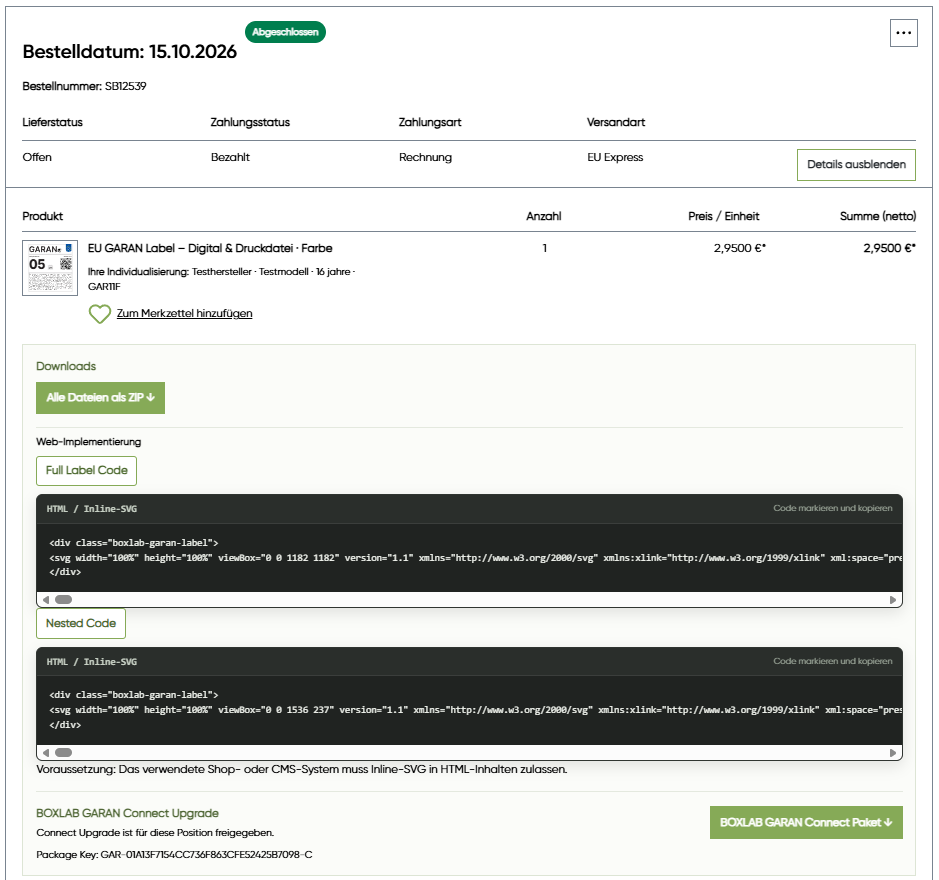
The harmonised artwork permits limited product-specific input. GARAN Studio provides a guided workflow rather than unrestricted editing.
01 · Producer / brand
Specify the producer or brand responsible for the commercial guarantee.
02 · Model identifier
Enter the identifying model designation.
03 · Guarantee period
Select the relevant commercial guarantee duration in years.
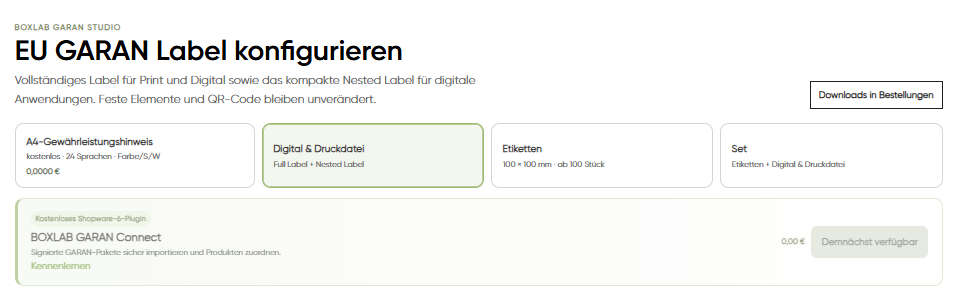
Choose the format you need
The available output depends on the product variant selected in the shop.
Digital web files
Full and, where applicable, nested outputs for electronic product presentations.
Print-ready files
Digital files in the offered PDF, SVG, PNG or JPG formats for further processing.
Physical labels
Complete labels for products, packaging or shelf-adjacent applications.
Combined options
Where available, digital files and physical output based on the same product configuration.
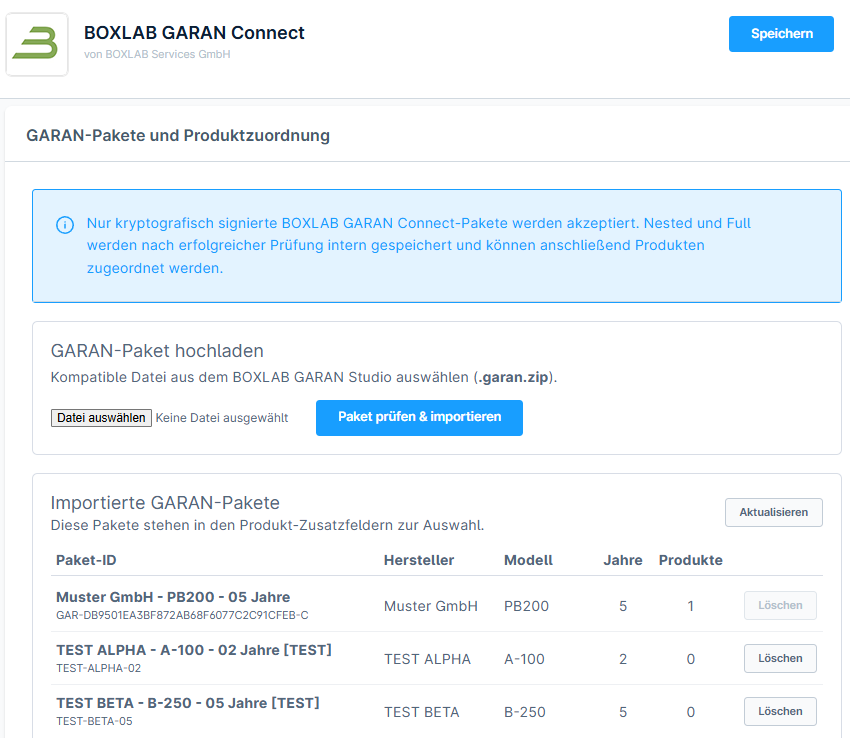
File created? Continue with GARAN Connect.
Shopware 6 operators can import compatible BOXLAB GARAN packages and assign them to products individually or via CSV.
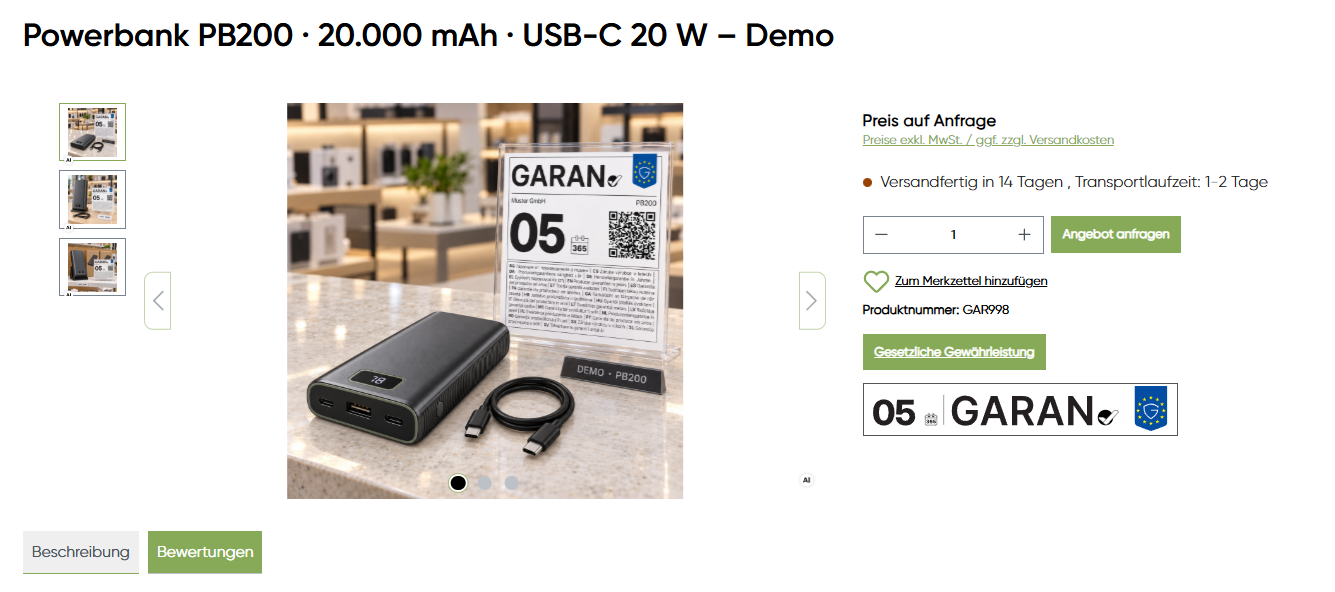
Digital presentation and physical identification
Product-specific information can be required in different channels.
Online shop
Display a full label or a nested label that opens the full view.
Outer packaging
Use a complete label on the outside of the packaging where appropriate.
Product or shelf
Provide product-associated information at the physical point of sale.
From product data to the sales floor
One configuration can serve several permitted outputs.
E-commerce
Use the product-specific GARAN label in online product presentation.
Internal workflows
Prepare files for documentation and further production stages.
Packaging
Add the appropriate complete label to outer packaging.
Retail display
Clearly assign the label to the product at the point of sale.
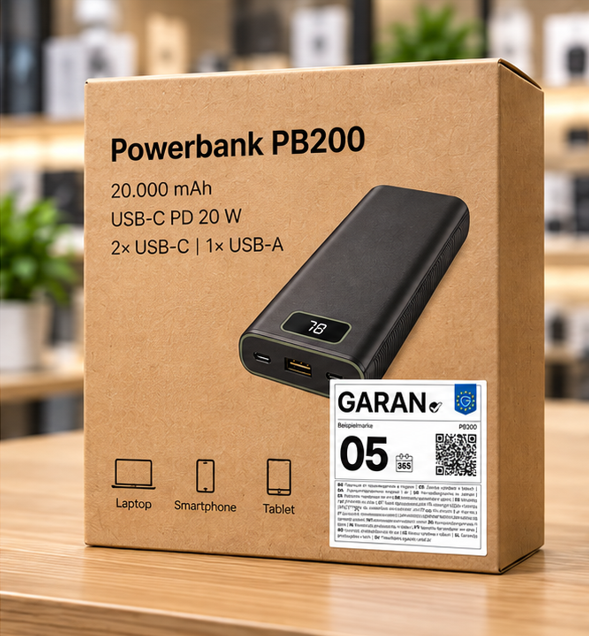
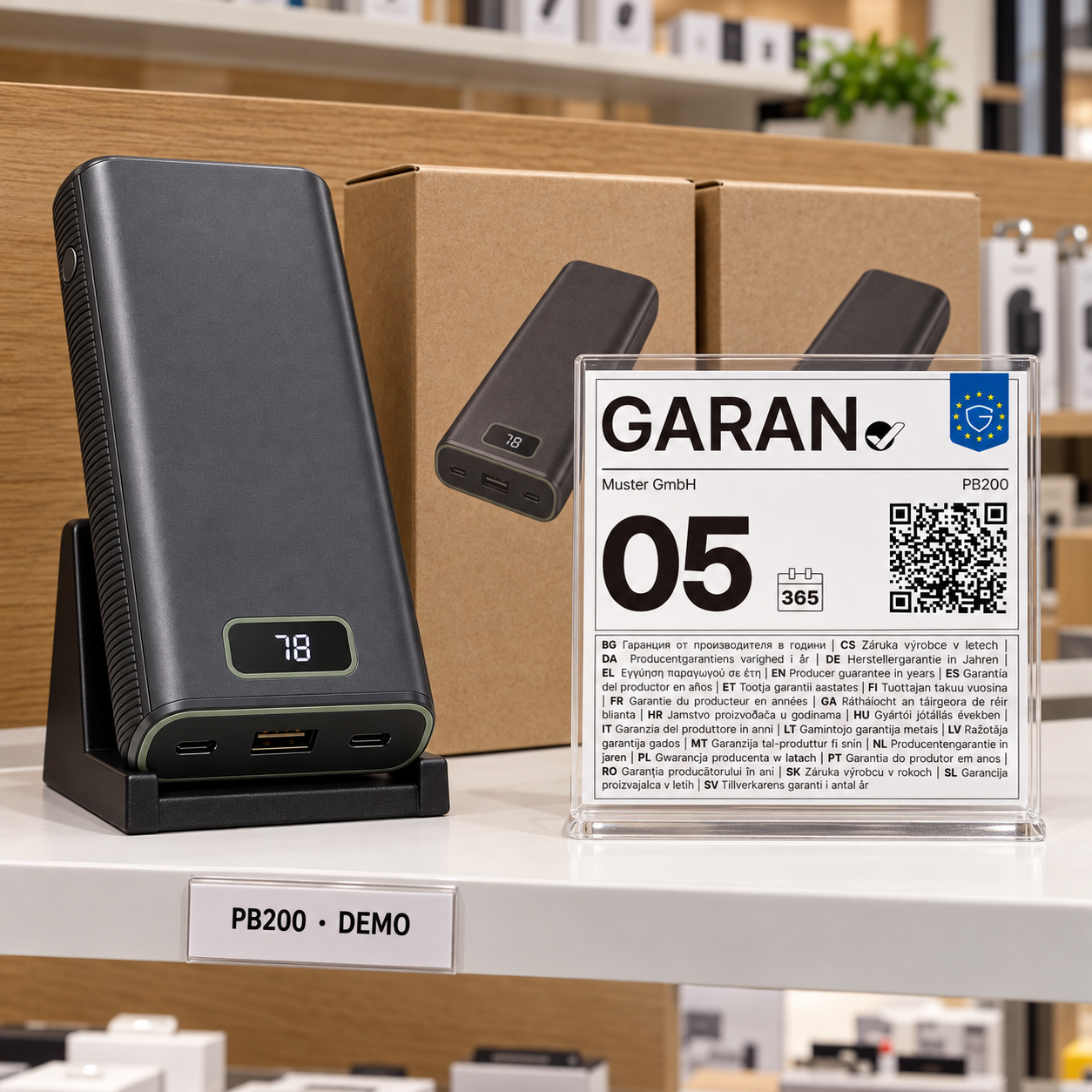
The template stays fixed. Your product details change.
The editor is not a free-form label designer. It maintains the harmonised framework while adding the appropriate product-specific values.
Whether the underlying commercial guarantee qualifies for the label must be assessed by the responsible business. File generation does not constitute individual legal advice.
Questions before ordering
Can I configure just one or two labels?
Individual configurations are supported. Minimum order quantities for physical products depend on the shop variant.
Do I need Shopware or a plugin?
No. You can obtain files or physical labels without Shopware. GARAN Connect is an optional integration for Shopware 6.
What is the difference between full and nested?
Full shows the complete label. Nested is a compact online presentation that opens the complete colour label when interacted with.
Can I use GARAN on packaging?
Depending on the applicable conditions, the complete label can be used on outer packaging when clearly associated with the product.
Does BOXLAB check the legal suitability of my commercial guarantee?
The configuration is based on the data provided; legal assessment of your individual guarantee is not automatically part of the purchase.
Enter. Review. Select output.
Create product-specific GARAN files or labels for your intended use.